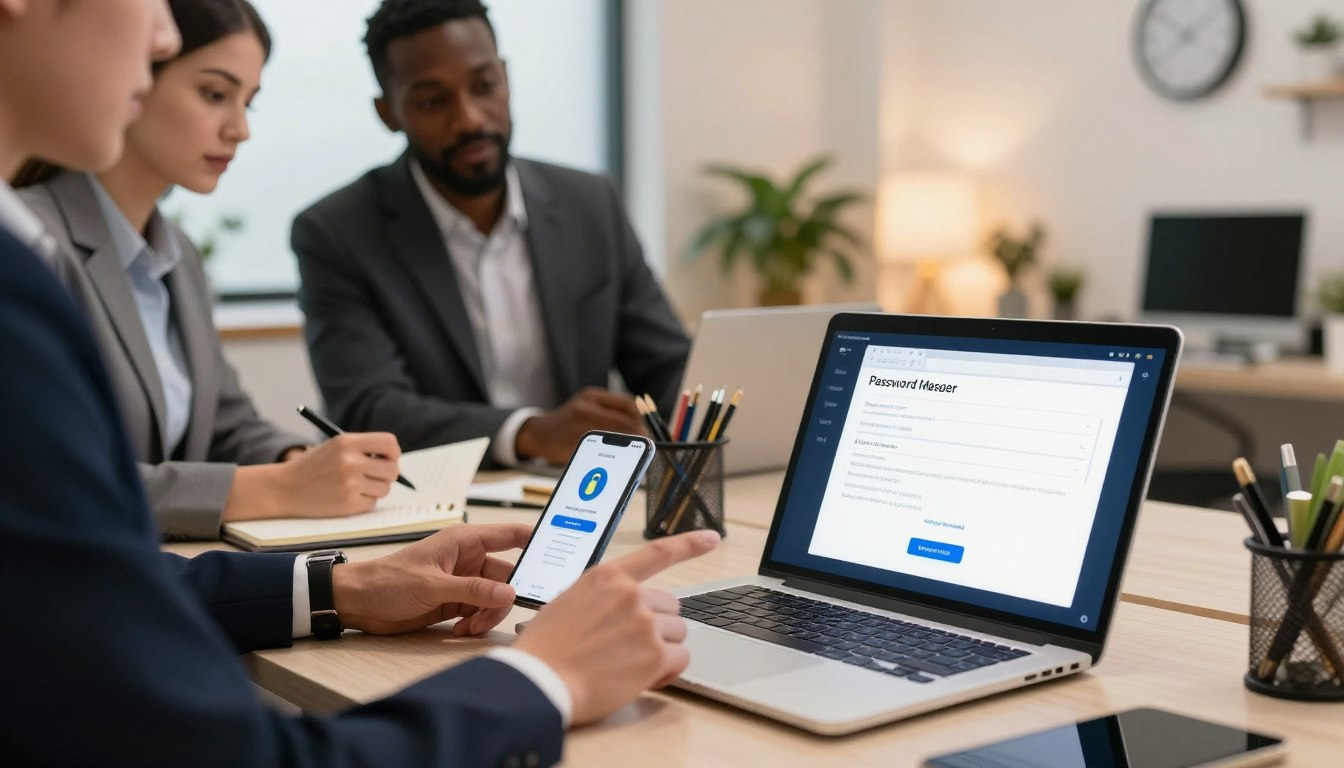
A reliable tool for your credentials can transfor your digital life in just a few short hours. This protective software stores your sensitive details and creates ironclad login codes for you automatically. You no longer need to rely on your tired memory or risky paper notes.
Securing your virtual identity should not feel like a daunting or exhausting task. You can complete this digital security transition in a single evening while relaxing at home on your couch. By the end of tonight, your personal accounts will be much safer against prying eyes and sophisticated cybercriminals. Start your journey now.
- Rapid Protection: Boost your account defense in a single night.
- Effortless Access: Create strong credentials without needing to remember them.
Why Tonight Is the Perfect Time to Start
Your current password habits might be risky. Setting up a password manager tonight can help a lot. Over 80% of data breaches are due to weak or stolen passwords.
The Hidden Risks Lurking in Your Current Password Habits
Using weak or duplicate passwords is a big risk. Hackers often exploit this to get into your stuff. Also, having many passwords makes it hard to remember them all.
Many users use easy-to-guess passwords. This includes names, birthdays, or common words. Hackers can easily guess these.
| Risk Factor | Description | Consequence |
|---|---|---|
| Weak Passwords | Using easily guessable information | Easy to crack by hackers |
| Duplicate Passwords | Using the same password across multiple sites | One breach compromises multiple accounts |
| Password Fatigue | Difficulty in managing multiple complex passwords | Users tend to use simpler passwords or reuse them |
What You’ll Accomplish in Just One Evening
Spending one evening on a password manager can boost your security. You’ll get unique, complex passwords for all your accounts. This reduces the risk of weak or duplicate passwords.
A password manager also autofills your login info. This makes logging in faster and safer. It also helps avoid phishing scams by ensuring you’re on the right site.
The Peace of Mind Waiting on the Other Side
After setting up a password manager, you’ll feel less stressed about passwords. Knowing your digital identity is safe is very freeing.
You’ll also feel more secure knowing you’re doing things right. This includes using a strong master password, enabling two-factor authentication, and updating passwords often.
Choosing Your Password Manager in 15 Minutes
In just 15 minutes, you can find the perfect password manager. It’s all about knowing what you need and comparing the best options.
Comparing Bitwarden, 1Password, Dashlane, and LastPass
Let’s look at the top password managers: Bitwarden, 1Password, Dashlane, and LastPass. Each has its own good points and not-so-good points.
What Makes Bitwarden the Best Free Option
Bitwarden is great because it’s open-source and free. It lets you store all your passwords for free. It also works on many devices without any cost. This is perfect for those who don’t want to spend money.
Why 1Password Excels for Families
1Password is easy to use and has a great family plan. It lets you share passwords safely with your family. It also has travel mode to keep your info safe when you’re away. This is great for families who want security and ease.
When Dashlane’s Premium Features Matter
Dashlane is special because of its dark web monitoring and VPN. These features cost more, but they add extra security. They’re good for those worried about identity theft and privacy.
Making Your Final Decision Without Regret
Think about what you need before deciding. Do you want something free, or are you okay with paying? Do you need it for your family, or just for yourself? By thinking about these things, you can pick the best password manager for you.
Take a moment to look at Bitwarden, 1Password, Dashlane, and LastPass. Your ideal password manager is just a few clicks away.
Your Complete Password Manager Setup Guide Starts Here

Setting up your password manager is key to keeping your online life safe. It’s easy and will help you manage your passwords well.
Downloading and Installing Your Desktop Application
The first thing to do is download and install the desktop app. This app will be your main tool for keeping passwords safe on all your devices.
Windows Installation Walkthrough
Windows users should start by going to the password manager’s official website. Click on the Windows download link. Then, run the installer and follow the instructions to install the app.
Key steps:
- Download the Windows version from the official website.
- Run the installer and follow the installation prompts.
- Launch the application and sign in.
macOS Installation Steps
Mac users should download the macOS version from the website. Open the .dmg file and drag the app to your Applications folder. You might need to enter your admin password.
Key steps:
- Download the macOS version.
- Open the .dmg file and drag the app to Applications.
- Enter your administrator password if prompted.
Linux Setup for Advanced Users
Linux users can install their password manager via the command line or by downloading a package. The steps depend on your Linux version.
Example for Ubuntu/Debian:
sudo apt-get update && sudo apt-get install [password-manager-name]
Creating Your Account and Verifying Your Email
After installing, create an account. You’ll need to give an email address and a master password.
Important: Pick a strong, unique email and a complex master password. Keep it safe.
Completing Your Initial Profile Configuration
After setting up your account, you’ll go through the initial setup. This includes setting up security questions, choosing sync options, and getting to know the app.
Tips:
- Turn on two-factor authentication if it’s available.
- Get to know the app’s settings.
- Check out any tutorials or guides.
Crafting Your Master Password the Right Way

Your master password is like a key to your safe. It must be strong to keep your passwords safe. Hackers often try to guess this password first.
Why Your Master Password Is Different From All Others
Your master password is extra strong. It keeps all your passwords safe. A weak password can let hackers into your safe.
A strong master password is your first line of defense against unauthorized access to your sensitive information. It’s essential to understand that the strength of your master password directly impacts the overall security of your digital identity.
The Four-Word Passphrase Method That Works
Using four random words is a great way to make a strong password. Pick words that are easy for you to remember but hard for others.
Choosing Memorable But Random Words
Don’t use common phrases or easy-to-guess words. Choose words that are personal but not too obvious.
Adding Numbers and Symbols Without Forgetting Them
Add numbers and symbols to make your password stronger. This makes it harder to guess without making it too hard to remember.
Testing Your Master Password Strength
Test your password with online tools to see how strong it is. These tools tell you how long it would take for a hacker to guess it.
Regularly reviewing and updating your master password is also a good practice to maintain maximum security.
The One Physical Backup You Should Make
Write your master password on paper and keep it safe. Store it in a safe or a locked cabinet.
This backup helps if you forget your password. But make sure it’s very secure to keep it safe from hackers.
Setting Up Browser Extensions Across All Your Devices

The next step is to set up browser extensions on all your devices. These extensions help fill in login info, make strong passwords, and save them safely.
Installing the Chrome Extension Step by Step
First, let’s add the Chrome extension for your password manager. Open the Chrome Web Store and search for your password manager. Click “Add to Chrome” and follow the steps to install it.
- Click on the “Add to Chrome” button.
- Confirm by clicking “Add extension.”
- After installing, you’ll see the extension icon in your browser.
Adding Extensions to Firefox and Safari
To add to Firefox, go to the Mozilla Add-ons store and search for your password manager. Click “Add to Firefox” and follow the prompts. For Safari, visit your password manager’s website to download the extension.
- For Firefox: Search and click “Add to Firefox.”
- For Safari: Download from your password manager’s official website.
Configuring Auto-Fill and Auto-Save Settings
After installing, set up auto-fill and auto-save. This makes sure your login info is filled in and new passwords are saved safely.
Customizing When Your Password Manager Activates
You can choose when your password manager turns on. Some like it to start with the browser, others prefer a shortcut or to turn it on manually.
- Go to your password manager’s settings in the browser extension.
- Look for “Activation” or “Launch” settings.
- Pick your preferred way to turn it on.
Setting Up Keyboard Shortcuts
Setting up keyboard shortcuts can make things faster. Most password managers let you set shortcuts for actions like making passwords or filling in login forms.
- Navigate to the extension’s settings.
- Find the “Shortcuts” or “Hotkeys” section.
- Choose your favorite shortcuts.
Testing Your First Password Save and Fill
To check if it’s working, save and fill a login form. Go to a website, log in, and save your info. Then, log out and use the autofill to log back in.
This step is key to make sure your password manager is working right.
Migrating Your Existing Passwords Without Losing Anything

The next step is to move your passwords to a new password manager. This might seem hard, but it’s easier if you break it down. You’ll get it done quickly.
Exporting Passwords from Chrome, Firefox, and Edge
Most browsers let you export saved passwords. Here’s how to do it with the most used browsers:
Chrome Password Export Instructions
To export passwords from Chrome, follow these steps:
- Open Chrome and go to Settings.
- Click on “Passwords” and then select “Saved passwords.”
- Click on the three dots next to the password you want to export and select “Export passwords.”
- Choose a location to save the CSV file and confirm.
Firefox Password Export Process
For Firefox users, the process is as follows:
- Open Firefox and go to Options.
- Select “Privacy & Security” and scroll down to “Logins and Passwords.”
- Click on “Saved Logins” and then on the three horizontal lines at the top right corner.
- Choose “Export Logins” and select a location to save the CSV file.
Edge and Safari Export Methods
For Edge and Safari, the process is similar:
- In Edge, go to Settings > Profiles > Passwords, and click on the three dots next to “Saved Passwords.” Then, select “Export passwords.”
- In Safari, go to Preferences > Passwords, and click on the “File” menu. Then, select “Export Passwords.”
Importing Your CSV File Into Your Password Manager
After exporting your passwords, it’s time to put them in your password manager. Most managers can import CSV files. Here’s how:
- Log in to your password manager account.
- Navigate to the “Import” or “Tools” section.
- Select the CSV file you exported earlier and follow the prompts to complete the import.
Manually Adding Your Most Critical Accounts
For accounts not saved in your browser or for extra security, add them manually to your password manager.
- Log in to your password manager and navigate to the “Add New Item” section.
- Enter the details for the account, including the username, password, and any additional information required.
- Save the new item to your vault.
Verifying All Passwords Transferred Correctly
After importing and manually adding passwords, check if everything is right:
- Review your password manager vault to ensure all expected passwords are present.
- Check for any duplicates or errors.
- Update any incorrect or missing information.
By following these steps, you’ll have moved your passwords to a new manager. This will make your online security better.
Fortifying Your Password Manager with Two-Factor Authentication
Two-factor authentication (2FA) is key to better password security. It adds a strong layer of protection to your password manager. This makes it much harder for bad guys to get in.
Understanding Why Your Password Manager Needs 2FA
Your password manager holds a lot of important info. Without 2FA, just one password keeps it safe. If that password gets stolen, all your passwords are in danger. 2FA helps by asking for a second check, like a code sent to your phone.
Installing and Configuring an Authenticator App
To use 2FA, you need an app like Authy or Google Authenticator. These apps give you a special code for the second check.
Setting Up Authy or Google Authenticator
First, download and install the app from the App Store or Google Play Store. Then, follow the steps to set it up. This usually means creating a PIN or using your face or fingerprint.
Scanning Your Password Manager’s QR Code
After setting up the app, link it to your password manager. Scan a QR code in your password manager’s 2FA settings. This code lets the app make the right codes for you.
Saving Your Recovery Codes in a Safe Location
When you turn on 2FA, your password manager gives you recovery codes. These codes help you get back in if you lose your app or it breaks. Keep these codes safe, like in a secure note or a bank safe.
| Recovery Code Storage Options | Security Level | Accessibility |
|---|---|---|
| Secure Note in Password Manager | High | Easy |
| Safe Deposit Box at Bank | Very High | Moderate |
| Encrypted Cloud Storage | High | Easy |
Testing Your Two-Factor Authentication Login
Log out and then log back in to test 2FA. You should see a code from your app after your master password. If it doesn’t work, check your app and 2FA settings again.
By following these steps, you make your password manager much safer. This protects your online identity and important info from hackers.
Getting Your Mobile Apps Running Smoothly
To make sure you can get to your passwords easily on all devices, let’s set up your mobile apps. This is key for keeping your security strong and your life easy.
Installing Your Password Manager on iPhone and Android
First, download and install the password manager app on your phone. If you have an iPhone, go to the App Store. If you have an Android, go to the Google Play Store. It’s easy and just like installing any other app.
Key steps for installation:
- Open the App Store (iOS) or Google Play Store (Android).
- Search for your password manager’s name.
- Tap “Get” or “Install” to download the app.
- Wait for the app to install, then open it.
Enabling Face ID, Touch ID, or Fingerprint Access
Make your app more secure by using biometric authentication. This lets you use Face ID, Touch ID, or fingerprint to get into your password vault.
iOS Biometric Setup Steps
- Open your password manager app.
- Go to the app’s settings menu.
- Look for “Biometrics” or “Face/Touch ID” and select it.
- Follow the prompts to enable Face ID or Touch ID.
Android Biometric Configuration
For Android devices, the steps are similar:
- Open the password manager app.
- Navigate to the settings or security section.
- Find “Biometric lock” or “Fingerprint access” and enable it.
- Follow the on-screen instructions to complete the setup.
Activating Auto-Fill for Mobile Browsers and Apps
Auto-fill saves you time by filling in login info for you. Here’s how to turn it on for iOS and Android.
iPhone Auto-Fill Settings
To enable auto-fill on an iPhone:
- Go to the Settings app.
- Scroll down and select “Passwords & Accounts.”
- Tap “AutoFill Passwords.”
- Toggle on “AutoFill Passwords” and select your password manager.
Android Auto-Fill Service Activation
For Android:
- Open the Settings app.
- Search for “Auto-fill” or “Auto-fill service.”
- Select your password manager as the auto-fill service.
- Follow any additional prompts to complete the setup.
Syncing Your Vault Across All Devices
Using a password manager lets you access your passwords on all devices. Make sure your vault is synced by checking your password manager’s settings.
Most password managers sync automatically. But, it’s good to check in the app’s settings. Look for “Sync” or “Sync Now” to sync manually if needed.
By following these steps, your password manager will work great on your mobile devices. You’ll have easy and secure access to your passwords wherever you are.
Running Your First Password Security Audit
First, set up your password manager. Then, do a security audit. This step is key to find weak or old passwords.
Using Built-In Security Tools to Scan Your Passwords
Most password managers have tools to check your passwords. Go to the security part of your manager. There, you can scan for weak or old passwords.
To get started:
- Log in to your password manager.
- Navigate to the security or password analysis section.
- Initiate a full scan of your password vault.
Identifying Weak, Reused, and Compromised Passwords
After scanning, your manager will show you weak or old passwords. It’s important to know this to fix your passwords.
Understanding Password Strength Scores
Password strength is scored. Low scores mean your password is weak. Change these passwords first.
Finding Duplicate Passwords Across Accounts
Using the same password for many accounts is risky. Find and change any duplicate passwords to strong, new ones.
Prioritizing Which Accounts to Update First
Some accounts are more important than others. Update your most critical accounts first. This includes banks, emails, and social media.
Generating and Updating Your First Ten Strong Passwords
Start by making strong passwords for key accounts. Use your manager’s password generator for this. Make passwords hard to guess.
Tips for generating strong passwords:
- Use a mix of uppercase and lowercase letters.
- Include numbers and special characters.
- Avoid sequences or easily guessable information.
By following these steps, you’ll make your online security much better.
Mastering Daily Use and Advanced Features
Now that you’ve set up your password manager, it’s time to explore its advanced features. These features can make your online security better and your digital life simpler. You’ll find many tools and features to help you.
Setting Up Secure Password Sharing with Family
Secure password sharing is a great feature. It lets you share passwords with family or colleagues safely. To start, go to the “Sharing” or “Family” section of your password manager.
Create a shared folder and invite others by email. You can choose what passwords to share and who can see them.
Creating Emergency Access for Trusted Contacts
Emergency access is a feature that lets trusted people get into your vault in an emergency. To set it up, go to the “Emergency Access” or “Trusted Contacts” section. Add the people you trust.
You can decide how long it takes for them to get in. This gives you time to cancel access if it’s not really an emergency.
Organizing Passwords with Folders and Tags
As you get more passwords, organizing them is key. Use folders and tags to sort them out. Folders can be for different parts of your life, like work or personal.
Tags can be for specific things, like financial or social media. This makes it easier to find what you need.
Scheduling Monthly Security Checkups
Regular security checkups are important. Schedule a monthly review to check your passwords. Look for weak, reused, or compromised ones.
Reviewing New Weak Password Alerts
Start your monthly checkup by looking at weak password alerts. Your password manager will tell you about weak or compromised passwords.
Updating Passwords for Breached Services
Update passwords for any services that have been breached. Your password manager can find these services and suggest new, strong passwords.
| Action | Frequency | Benefit |
|---|---|---|
| Review weak password alerts | Monthly | Identify and strengthen weak passwords |
| Update breached service passwords | As needed | Protect against unauthorized access |
| Organize passwords | Quarterly | Improve password accessibility and management |
Backing Up Your Encrypted Vault
Make sure you have a backup of your encrypted vault. Most password managers let you download your vault. Store this backup safely, like on an encrypted external drive.
Conclusion
By following this guide, you’ve made big steps to keep your online world safe. You’ve picked the best password manager and set it up on all your devices. Now, you can make and keep strong, unique passwords.
Remember, being consistent is very important. Always use your password manager for all online accounts. This makes your online life safer and easier, without having to remember many passwords.
With your password manager ready, you’re safer from hackers and data breaches. You’ve also turned on two-factor authentication for extra safety. Now, use your password manager every time and feel safe knowing your online identity is protected.
FAQ
Q: The Hidden Risks Lurking in Your Current Password Habits
A: If you reuse passwords or store them in an unencrypted notes app, you’re not secure. Cybercriminals use “credential stuffing” to break into accounts. Without secure password manager setup steps, a small leak can give hackers access to your email or bank account.
Q: What You’ll Accomplish in Just One Evening
A: Setting up a vault is quicker than you think. In one session, you can go from chaos to a streamlined system. You’ll learn how to configure a password manager, import your data, and secure it with encryption. It’s a small time investment for a big upgrade in your digital workflow.
Q: The Peace of Mind Waiting on the Other Side
A: Imagine knowing every account is protected by a unique, 20-character random password. This password manager setup checklist is your path to peace of mind. Your data is scrambled and only accessible to you.
Q: Comparing Bitwarden, 1Password, Dashlane, and LastPass
A: The market has several great options. Bitwarden is loved for its open-source transparency and free tier. 1Password is known for its beautiful interface and “Secret Key” security. Dashlane offers a VPN, while LastPass is a well-known name. Each has best practices for setting up a password manager, so choose based on your needs.
Q: Making Your Final Decision Without Regret
A: Don’t get stuck in “analysis paralysis.” Pick the one that feels most intuitive to you. Most services offer a free trial, so you can try before committing.
Q: Downloading and Installing Your Desktop Application
A: Start by visiting your chosen provider’s website. Download the desktop app for Windows or macOS. Installing the local app is key, as it provides a hub for managing your vault outside of a web browser.
Q: Creating Your Account and Verifying Your Email
A: Register with a primary email address you plan to keep forever. Once you sign up, check your inbox for a verification link. This ensures only you have control over the account.
Q: Completing Your Initial Profile Configuration
A: Follow the on-screen prompts to set your basic preferences. This includes choosing your language, theme, and how often the app should “lock” itself for your protection.
Q: Why Your Master Password Is Different From All Others
A: Your master password is the “Keys to the Kingdom.” It’s the only password you’ll ever need to remember. Most managers use “Zero-Knowledge” encryption, so the company can’t reset it for you. If you lose it, you lose your data.
Q: The Four-Word Passphrase Method That Works
A: Use a passphrase instead of a complex string. Choose four random, unrelated words (e.g., “Correct-Battery-Staple-Horse”). This is harder for computers to crack but easier for your brain to remember.
Q: Testing Your Master Password Strength
A: Before finalizing, use the built-in strength meter. Ensure it reaches the “Strong” or “Very Strong” tier. This is a key part of any secure password manager setup steps.
Q: The One Physical Backup You Should Make
A: Write your master password down on a piece of paper and store it in a physical safe or a locked drawer. This “analog backup” is your safety net in case of a memory lapse.
Q: Installing the Chrome Extension Step by Step
A: Open the Chrome Web Store and search for your manager (e.g., 1Password or Bitwarden). Click “Add to Chrome.” Once installed, pin the extension to your toolbar for easy access.
Q: Adding Extensions to Firefox and Safari
A: Don’t forget your other browsers. Visit the Firefox Add-ons store or the Mac App Store for Safari extensions. Having the tool available everywhere is key to a seamless password manager setup guide experience.
Q: Configuring Auto-Fill and Auto-Save Settings
A: Go into the extension settings and enable “Auto-fill on page load.” This allows the manager to detect login fields and offer to fill them automatically, saving you seconds on every login.
Q: Testing Your First Password Save and Fill
A: Log in to a site like Netflix or LinkedIn. Your manager should prompt you to “Save” the credentials. Log out and try to log back in to see the auto-fill magic in action.
Q: Exporting Passwords from Chrome, Firefox, and Edge
A: If you’ve been saving passwords in your browser, it’s time to move them. In Google Chrome, go to Settings > Passwords > Export. This will create a CSV file containing your credentials.
Q: Importing Your CSV File Into Your Password Manager
A: Inside your new password manager, find the “Import” tool. Select the browser you exported from and upload the CSV file. Your vault will instantly populate with all your saved accounts.
Q: Manually Adding Your Most Critical Accounts
A: For high-security accounts like your Gmail or bank, consider adding them manually. This ensures every detail (like security questions) is captured correctly.
Q: Verifying All Passwords Transferred Correctly
A: Scroll through your list. If everything looks correct, delete the CSV file from your computer immediately. Leaving an unencrypted list of passwords on your desktop is a major security risk.
Q: Understanding Why Your Password Manager Needs 2FA
A: Two-factor authentication (2FA) adds a second layer of defense. Even if someone guesses your master password, they won’t be able to get in without a temporary code from your phone.
Q: Installing and Configuring an Authenticator App
A: Download Google Authenticator or Authy on your smartphone. In your password manager’s security settings, scan the QR code to link the device. This is one of the essential password manager setup tips and tricks for maximum security.
Q: Saving Your Recovery Codes in a Safe Location
A: Your manager will provide “Recovery Codes.” If you lose your phone, these codes are the only way to bypass 2FA. Treat them like gold and store them with your physical master password backup.
Q: Testing Your Two-Factor Authentication Login
A: Log out of your vault and log back in. The app should now ask for your 6-digit code. Once this works, your vault is officially a fortress.
Q: Installing Your Password Manager on iPhone and Android
A: Search for your manager on the Apple App Store or Google Play Store. Sign in using your master password and your 2FA code.
Q: Enabling Face ID, Touch ID, or Fingerprint Access
A: To avoid typing your long master password on a tiny screen, enable biometrics. Face ID or Android Fingerprint makes accessing your vault on the go incredibly fast and secure.
Q: Activating Auto-Fill for Mobile Browsers and Apps
A: In your phone’s system settings (under “Passwords” or “Autofill Service”), select your password manager as the primary provider. Now, when you open the Instagram or PayPal app, your manager will offer to fill your details automatically.
Q: Syncing Your Vault Across All Devices
A: Trigger a manual sync to ensure your mobile app has the latest passwords you imported on your desktop. Now, your security travels with you.
Q: Using Built-In Security Tools to Scan Your Passwords
A: Most managers, like Dashlane or 1Password, have a “Security Watchtower” or “Password Health” dashboard. Run a scan to see how your current passwords measure up.
Q: Identifying Weak, Reused, and Compromised Passwords
A: The audit will flag “Compromised” passwords (those found in known data breaches) and “Reused” passwords. These are your biggest vulnerabilities.
Q: Prioritizing Which Accounts to Update First
A: Start with the “Big Three”: your primary Email, your Financial accounts, and your Social Media. These are the high-value targets for hackers.
Q: Generating and Updating Your First Ten Strong Passwords
A: Use the built-in Password Generator to create random strings (e.g., z&K9#vL2!mPq). Change the passwords on the actual websites and save the new versions in your vault. Do ten tonight; do the rest over the next week.
Q: Setting Up Secure Password Sharing with Family
A: If you use 1Password Families or Bitwarden Organizations, you can create “Vaults” to share the Disney+ or Hulu password with your household without sending them in a dangerous text message.
Q: Creating Emergency Access for Trusted Contacts
A: Some managers allow you to nominate a “legacy contact.” If something happens to you, your spouse or a trusted friend can request access to your vault after a set waiting period.
Q: Organizing Passwords with Folders and Tags
A: As your vault grows, use folders like “Work,” “Shopping,” or “Finance” to keep things tidy. Tips for optimizing your password manager setup often include tagging accounts that require 2FA so you can track your security progress.
Q: Scheduling Monthly Security Checkups
A: Set a recurring calendar invite to spend 5 minutes checking for new data breaches. This proactive habit keeps your digital life resilient.
Q: Backing Up Your Encrypted Vault
A: While the cloud is reliable, exporting an encrypted backup to a secure USB drive once a year is a smart “insurance policy” for your digital identity.
Q: What is the best password manager for a beginner?
A: For beginners, 1Password and Dashlane are highly recommended. If you’re looking for a free, high-quality option, Bitwarden is excellent. Following a password manager setup tutorial for any of these will get you up and running quickly.
Q: How do I ensure my master password is secure?
A: Use a passphrase of at least four random words. Avoid using personal information like birthdays or pet names. A key part of best practices for setting up a password manager is making this password long and unique, as it is the primary shield for all your other data.
Q: Is it safe to import passwords from Google Chrome?
A: Yes, it is safe as long as you follow the secure password manager setup steps. This includes exporting the CSV file, immediately importing it into your encrypted vault, and then permanently deleting the CSV file from your computer’s hard drive.
Q: Can I use my password manager on both my iPhone and Windows PC?
A: Absolutely. Most modern managers like LastPass and Bitwarden are cross-platform. This password manager setup guide emphasizes syncing your vault so that any change you make on your PC is instantly reflected on your mobile device.
Q: What should I do if I lose my phone with the 2FA app?
A: This is why saving your recovery codes is a critical step in how to configure a password manager. Use your physical backup of recovery codes to log in to your account and reset your two-factor authentication on a new device.
Q: Does a password manager fill in passwords for mobile apps?
A: Yes. By enabling the “Auto-fill” service in your iOS or Android settings, your manager can detect when you open an app like Bank of America or Facebook and provide the login credentials for you.
Q: How often should I run a password security audit?
A: One of the best tips for optimizing your password manager setup is to run a built-in security audit at least once a month. This helps you catch any newly compromised accounts that may have appeared in recent data breaches.