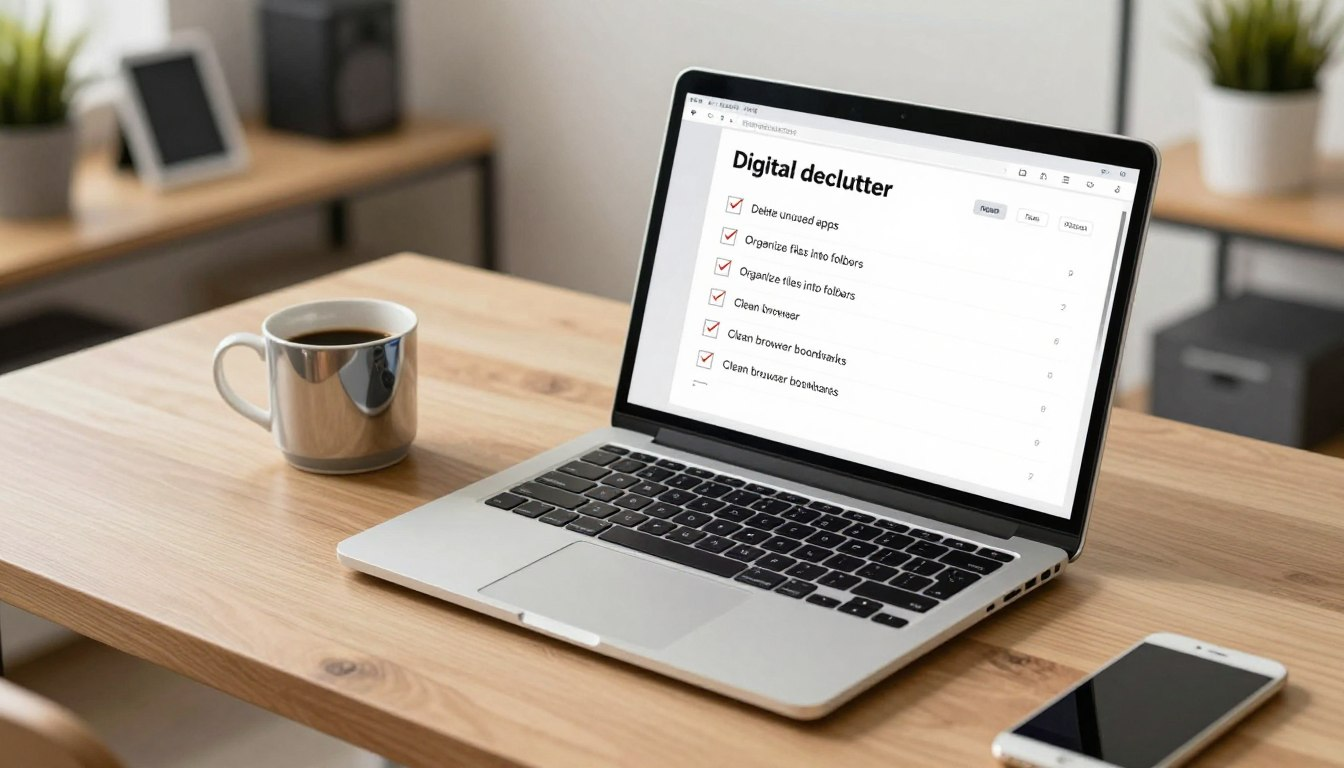
You should have a workspace that helps you focus, not adds stress. Cleaning your machine doesn’t have to take all day or feel like a chore.
By using a digital declutter checklist, you can get back your speed and efficiency. This simple routine keeps your laptop organized without wasting your time.
Imagine cleaning up in just thirty minutes. It’s time to refresh your virtual space and work clearly again.
Why Your Laptop Desperately Needs a Digital Declutter
Digital decluttering is more than just freeing up space. It makes your computer work better. A messy laptop can slow you down and make you feel stressed.
The Performance Cost of Digital Clutter
A messy computer slows you down. Too many files and programs make it hard for your laptop to work fast. This can cause:
- Slower boot times
- Longer loading times for applications
- Increased risk of crashes and freezes
Table: Impact of Digital Clutter on Laptop Performance
| Aspect | Cluttered Laptop | Decluttered Laptop |
|---|---|---|
| Boot Time | Several minutes | Under 1 minute |
| Application Loading | Slow and delayed | Quick and responsive |
| System Stability | Frequent crashes | Rare crashes |
How Disorganization Kills Your Daily Productivity
Digital mess hurts your daily work. It’s hard to find what you need fast. This wastes time, causes stress, and makes you miss deadlines.
Mental Benefits of a Clean Digital Workspace
A tidy digital space boosts your laptop and your mind. It reduces stress and helps you focus. You’ll feel more in control of your digital world.
Using digital decluttering strategies makes your computer better. You’ll work faster and feel less stressed.
Preparing for Your 30-Minute Digital Cleanup Session
Getting ready is key for a good 30-minute digital clean-up. You’ll be able to sort out organizing digital files well and fast.
Setting Your Timer and Realistic Expectations
Start by setting a 30-minute timer. This helps you stay on track and work well.
It’s also good to know what you can do in this time. Remember, you’re aiming to make big steps, not get everything perfect right away.
Creating a Quick Backup for Safety
Before you start cleaning up, make sure your important stuff is safe. You can sync your files online or save them on an external drive.
This is very important to avoid losing your data while you’re cleaning up.
| Step | Action | Tool/Service |
|---|---|---|
| 1 | Identify critical files | File Explorer/Finder |
| 2 | Sync files to cloud storage | Google Drive, Dropbox, OneDrive |
| 3 | Create a local backup | External Hard Drive |
Gathering Your Digital Decluttering Tools
To make cleaning up digital stuff easier, get your tools ready. You’ll need disk cleaners, file organizers, and apps to remove unwanted programs.
Having these tools ready will help you deal with different parts of cleaning up your digital space.
Clear Your Desktop in 5 Minutes
In just five minutes, you can make your desktop clean and organized. A messy desktop can be distracting and slow you down. You can make it simple by following a few easy steps.
Deleting Unnecessary Icons and Shortcuts
Begin by getting rid of icons and shortcuts you don’t need. These can pile up and make your desktop look messy. Sort through your icons and delete any you don’t use. This helps you focus on what’s important.
Creating Desktop Folders for Quick Organization
Next, make folders on your desktop to organize your files. You can do this by right-clicking on the desktop and choosing “New Folder.” Name these folders like “Work,” “Personal,” or “Projects.”
| Folder Name | Description | Example Files |
|---|---|---|
| Work | Files related to your job or career | Reports, presentations, resumes |
| Personal | Files related to personal activities | Photos, personal documents, recipes |
| Projects | Files related to specific projects | Project plans, research, drafts |
Moving Files to Their Proper Locations
After making your folders, put the right files in them. This keeps your desktop tidy and makes finding files easier. Just drag and drop the files into their folders.
Choosing a Minimalist Wallpaper
Lastly, pick a simple wallpaper for your desktop. A calm wallpaper keeps your desktop looking good. Choose something that’s soothing and doesn’t distract you.
Conquer Your Downloads Folder Fast

Keeping your Downloads folder clean is key to a tidy digital space. A messy folder can slow you down. With a few easy steps, you can make your digital life simpler.
Sorting Files by Date and Type
Start by sorting your Downloads folder by date and type. This makes it easy to find and delete old files. Click on the “Date Modified” or “Type” column header to sort. This is a big part of any digital detox plan.
Deleting Installation Files and Duplicates
Then, delete any files you don’t need. This includes old installation files and duplicates. Be careful not to delete something important.
Moving Important Documents to Permanent Folders
Next, move important documents to where they belong. This could be a “Documents” folder or a project folder. This keeps your Downloads folder clean and your files easy to find.
Setting Up Automatic Downloads Organization
To keep your folder organized, set up automatic organization. Many tools let you choose where files go or sort them automatically. This saves time and keeps your space neat.
By following these steps, you can quickly organize your Downloads folder. This helps you stay organized and supports your digital detox plan.
Organize Your Documents and Files with a Smart System
A smart file system is key to a well-organized digital life. It makes your work easier. A good folder system is the base of this.
Creating a Logical Three-Level Folder Structure
Begin with a three-level folder system. You have big categories (level 1), smaller ones (level 2), and project folders (level 3). For example, “Work,” “Personal,” and “Projects” are your level 1 folders.
Under “Work,” you might have “Clients,” “Proposals,” and “Reports.” Then, “Clients” could have folders for each client.
Benefits of a Three-Level Structure:
- Easier navigation through your files
- Reduced time spent searching for documents
- Improved collaboration when working with others
Implementing Consistent Naming Conventions
Using the same naming for files and folders is important. Pick a format and stick to it. A common way is to use a date format (YYYYMMDD) followed by a name. For example, “20230601_ProjectProposal.docx.”
Tips for Naming Conventions:
- Use dates in a consistent format
- Include descriptive keywords
- Avoid special characters that might cause compatibility issues
Archiving Projects Older Than One Year
Move projects older than a year to an “Archive” folder. This keeps your main folders clean. It helps you focus on current tasks.
Archiving Benefits:
- Reduces clutter in your main folders
- Preserves historical data for reference
- Improves search efficiency by reducing the number of active files
Using Date-Based Organization for Time-Sensitive Files
Use a date-based system for urgent files. It’s great for deadlines, appointments, or events. Create folders by year and month, and move files into them.
Example of Date-Based Organization:
| Folder Name | Description |
|---|---|
| 2023 | Top-level folder for the year 2023 |
| 2023/06 | Subfolder for June 2023 |
| 2023/06/01 | Subfolder for June 1, 2023, containing files relevant to that date |
These strategies help you keep your files organized. They boost your productivity and cut down on digital clutter.
Uninstall Programs and Apps You Never Use

Getting rid of unused programs and apps is easy and helps a lot. It makes your device run better and faster. Unused apps take up space and slow things down.
First, find out which apps use the most resources. This is important because it shows how much they slow you down.
Identifying Resource-Hogging Applications
Start by seeing which apps use the most resources. On Windows, use the Task Manager. On a Mac, use the Activity Monitor.
To find apps that use a lot on Windows: Press Ctrl + Shift + Esc. Then, click on the “Performance” tab.
To find apps that use a lot on Mac: Open Activity Monitor. Sort by CPU, Memory, or Disk usage.
Safely Removing Software on Windows
Now, remove the apps you don’t need. On Windows, use the Control Panel or Settings app.
- Open the Control Panel or go to Settings > Apps > Apps & features.
- Sort the list by size, name, or date.
- Pick the app you want to remove and click “Uninstall.”
- Follow the steps to finish uninstalling.
Uninstalling Applications on Mac
Uninstalling apps on a Mac is easy. Just drag them to the Trash. But, for a complete removal, use a dedicated uninstaller if you can.
- Open Finder and go to Applications.
- Drag the app you don’t want to the Trash.
- Right-click on the Trash icon and choose “Empty Trash.”
Clearing Leftover Files and Cache Data
After removing apps, get rid of leftover files and cache. These can take up a lot of space.
On Windows, use the Disk Cleanup tool. On a Mac, check the Library folder for leftover files.
By removing unused apps and files, you make your digital space cleaner. This also makes your device run better. It’s a key step to keep your digital space tidy and efficient.
Deep Clean Your Web Browser in Minutes
Your web browser gets cluttered as you use it. This clutter slows you down and might be risky. Cleaning your browser makes it work better and safer.
Removing Unnecessary Browser Extensions
Browser extensions are helpful, but too many slow you down. Check your extensions and delete unused ones. This makes your browser faster and safer.
- Find extensions you haven’t used in a month.
- Get rid of any you don’t need or that seem suspicious.
- Keep only extensions that really help you.
Clearing Cache, Cookies, and Browsing History
Clearing your browser’s cache, cookies, and history makes it run better. Do this often to keep your online life private. It removes info that could track you.
To clear your data:
- Go to your browser’s settings.
- Find the section for clearing data.
- Pick what data to clear, like cache and cookies.
- Choose how long ago you want to clear data.
- Confirm to clear the data.
Organizing Bookmarks into Logical Folders
Organizing bookmarks helps you find sites faster. Make folders for different things like work or hobbies.
- Start with big folders for main topics.
- Make subfolders for smaller topics.
- Keep your folders up to date.
Reviewing and Managing Saved Passwords
It’s important to manage your saved passwords. Check your passwords and change them if needed. This keeps your online life safe.
To manage passwords:
- Open your browser’s password manager.
- Look over your saved passwords for weak ones.
- Change weak passwords to strong, unique ones.
- Think about using a separate password manager for more security.
Streamline Your Email Inbox with Quick Strategies

Having an organized email inbox helps you feel less stressed and more productive. A messy inbox can cause you to miss important emails. It also wastes time and makes you feel stressed.
By using a few simple steps, you can make your email inbox better. This will help you stay organized online and work better.
Unsubscribing from Promotional Emails Using Unroll.me
Getting rid of unwanted emails is a quick way to clean up your inbox. Tools like Unroll.me make it easy to find and remove emails you don’t want. This cuts down on clutter and helps you focus on what’s important.
Creating Folders and Automated Filters
Organizing your emails into folders and using filters is very helpful. It lets you find what you need fast. Filters automatically sort emails for you, keeping your inbox neat.
- Create main folders for broad categories (e.g., Work, Personal, Bills)
- Use subfolders for more specific topics within each category
- Set up filters to automatically sort incoming emails into the appropriate folders
Archiving Emails Older Than Six Months
Archiving old emails keeps your inbox clean. It makes it easier to find new emails. Older emails go into an archive folder, keeping your inbox tidy.
Tip: Check your archived emails often. Delete any that are no longer useful.
Implementing the Inbox Zero Method
The Inbox Zero method means keeping your inbox empty. You do this by moving emails into folders, archiving, or deleting them. It takes discipline but boosts your productivity and reduces stress.
Using these strategies can make your email inbox more organized. This helps you work better and feel less stressed online.
Optimize Your Cloud Storage Accounts
It’s important to keep your cloud storage clean. As you store more files online, it can get messy like your desk.
Start by checking your cloud accounts. Look for files you don’t need, duplicates, and old documents. You can delete or archive them.
Reviewing Files in Google Drive
First, look at your Google Drive. Find folders and files you don’t need anymore. Use Google Drive’s search to find big files or old documents.
- Sort files by size to find big documents you don’t need.
- Check the “Shared with me” section for files you can delete.
- Use the search bar to find old files.
Cleaning Up Dropbox and OneDrive
Then, check Dropbox and OneDrive for files you don’t need. These services sync with your local files. Make sure you don’t have duplicates or old versions.
Key actions:
- Delete any duplicate files or old versions.
- Remove files you don’t need anymore.
- Put files in clear folders.
Deleting Duplicate Files Across Cloud Services
Duplicate files are common across cloud services. Use tools or manual checks to find and delete them. This saves space.
Tip: Use a duplicate file finder tool to help.
Organizing Cloud Folders to Mirror Local Structure
Organize your cloud folders like your local folders. This makes finding files easier and saves time.
By following these steps, you’ll clean up your cloud storage. This reduces digital clutter and improves your digital organization.
Digital Declutter Checklist for System Maintenance

Keeping your laptop in good shape is key. A few easy steps can make it run better and faster.
Running Built-in Disk Cleanup Utilities
Every operating system has tools to clean up your laptop. For Windows, use the Disk Cleanup tool. Mac users can check the Storage tab in About This Mac.
Emptying Your Recycle Bin and Trash
Files in your Recycle Bin or Trash take up space. Emptying them often helps free up room.
Clearing Temporary Files and System Cache
Temporary files and system cache can fill up your space. Tools like CCleaner or CleanMyMac X can help get rid of them.
Checking Available Storage Space
It’s important to watch your storage space. Check it often and think about upgrading if it’s always low.
Defragmenting Your Hard Drive on Windows
Windows laptops with hard drives can benefit from defragmenting. Use the Defragment and Optimize Drives tool to do this.
Follow this digital declutter checklist to keep your laptop running well. Adding these decluttering tips to your routine will keep your device in great shape.
Implement Digital Organization Tools for Long-Term Success
To keep your digital life clean, you need the right tools. These tools help keep your digital space tidy. They also make tasks easier over time.
Best Declutter Apps: CCleaner and CleanMyMac X
For digital decluttering, special apps are key. CCleaner and CleanMyMac X are top choices. CCleaner cleans files on Windows. CleanMyMac X does the same for Macs, plus removes malware.
| Tool | Platform | Primary Function | Additional Features |
|---|---|---|---|
| CCleaner | Windows | Cleaning temporary files | Registry cleaning, browser cleaning |
| CleanMyMac X | Mac | System optimization | Malware removal, disk cleaning |
Using Hazel for Mac Automation
Hazel is great for Mac users. It sorts files automatically. This keeps your digital space tidy.
Implementing File Juggler for Windows
File Juggler helps Windows users. It organizes files based on rules. This keeps your digital files in order.
Setting Up Weekly Maintenance Reminders
Weekly reminders are key for digital upkeep. Use calendars or apps to stay on track. This ensures your digital space stays organized.
Creating a Monthly Digital Detox Plan
A monthly detox plan is also important. It involves reviewing your digital habits. You’ll unsubscribe from unwanted services and check your tools.
Using these tools and practices helps keep your digital life tidy. This leads to long-term success.
Conclusion
Keeping your digital space clean is a big job. But it’s worth it because it makes you more productive and less stressed. By using this digital declutter checklist, you’ve started on the right path.
To keep your digital area tidy, think about making a digital detox plan. This means setting aside time to clean up regularly. This way, you can find what you need fast, avoid distractions, and have a better digital experience.
Make cleaning your digital space a regular thing. Use reminders and tools like CCleaner and CleanMyMac X to help. With a steady plan, you’ll enjoy a clutter-free digital world. This means you’ll work better and feel less stressed.
FAQ
Q: How often should I perform a digital declutter?
A: Clean your digital space weekly. Do a deep clean once a month. This keeps your laptop fast and your mind clear.
Q: What are the best declutter apps for beginners?
A: CleanMyMac X is great for Apple users. CCleaner and BleachBit are top picks for Windows. They help keep your laptop running smoothly.
Q: Can digital decluttering strategies really speed up my laptop?
A: Yes. Removing apps and clearing caches makes your laptop faster. It also helps your system run better.
Q: What are some effective digital decluttering tips for managing photos?
A: Use Gemini 2 to find and delete duplicates. Keep only your best photos. Store others on an external drive.
Q: How do I start a digital detox plan if I feel overwhelmed?
A: Begin with small steps. Start with your email or desktop. Use rules like “One-In, One-Out” for apps. Unsubscribe from one newsletter a day.
Q: Are there any digital organization tools that help with file naming?
A: Yes. Apps like A Better Finder Rename for Mac or Bulk Rename Utility for Windows help. They make naming files easy and consistent.