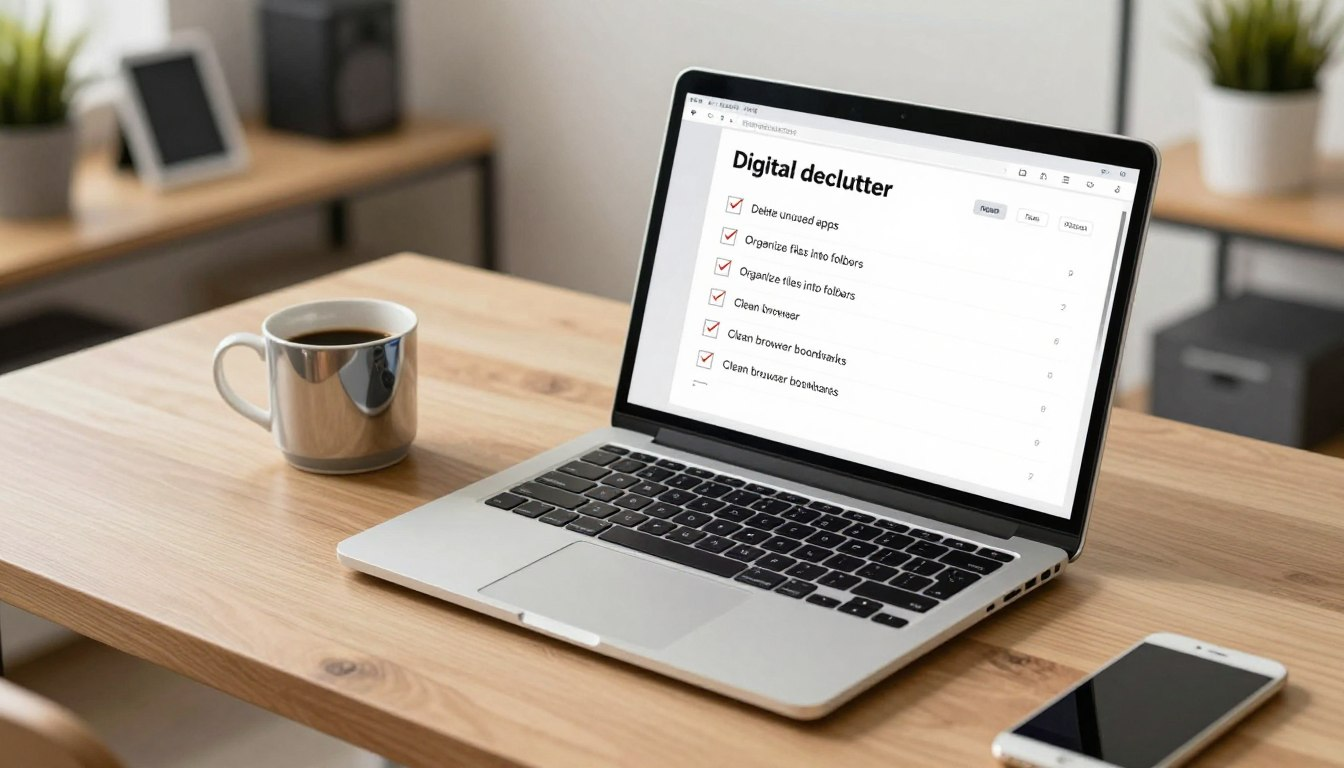
You don’t need a “perfect” laptop setup to feel organized. You need a workspace that loads quickly, makes files easy to find, and doesn’t distract you every time you open it.
This digital declutter checklist is designed for real life: one focused 30-minute session that clears the most common messes (desktop, downloads, browser clutter, unused apps, and storage hogs) without turning into a weekend project.
What you’ll get in 30 minutes: a cleaner desktop, a Downloads folder you can trust, fewer browser slowdowns, more free storage, and a simple system that stays tidy.
Your 30-Minute Plan (Do This in Order)
| Time | Task | Goal |
|---|---|---|
| 0–3 min | Safety prep + quick backup | Declutter without fear |
| 3–8 min | Desktop reset | Instant visual calm |
| 8–13 min | Downloads folder sweep | Remove junk + file the keepers |
| 13–19 min | Browser deep clean | Fewer slowdowns + less tracking |
| 19–24 min | Uninstall + startup trim | Speed and stability |
| 24–28 min | System storage cleanup | Free space fast |
| 28–30 min | Finish + set “stay clean” habits | Lock in the win |
Why Your Laptop Needs a Digital Declutter (Even If It “Works Fine”)
Digital clutter doesn’t just waste storage. It quietly steals minutes every day—scrolling for files, dealing with pop-ups, waiting for apps to load, and reopening the same tabs because bookmarks are chaos.
A decluttered laptop usually feels faster because you remove friction: fewer background apps, fewer browser extensions, fewer random files in the places you “always check” first (Desktop + Downloads).
The most common “clutter hotspots”
- Desktop: becomes a dumping ground → distraction every time you open your laptop.
- Downloads: full of installers, duplicates, and mystery PDFs.
- Browser: too many extensions, heavy cache, old saved logins.
- Apps: unused software still running helpers in the background.
- Storage: temporary files, old screenshots, and forgotten exports.
0–3 Minutes: Prep (So You Don’t Delete Something Important)
Start with two rules:
- Close what you’re using. Shut down big apps (Chrome, Adobe, games). Decluttering while everything is open makes it harder to tell what’s safe to delete.
- Backup “can’t-lose” files. If you’re unsure, copy critical folders to cloud storage or an external drive before you start moving things around.
Quick backup shortcut: If you’re in a hurry, backup only these: your Desktop, Documents, and any active work folder (client/project). That covers 90% of “oh no” moments.
Also: plug in your laptop if the battery is low. You don’t want a shutdown mid-cleanup.
3–8 Minutes: Clear Your Desktop (Fast, Not Perfect)
The Desktop is the quickest win because it’s visual. The goal isn’t “minimalist influencer.” The goal is: everything on your Desktop should be either active this week or a shortcut you truly use.
Step 1: Make three folders (30 seconds)
Create these folders directly on your Desktop:
- 01 — Active (things you’re working on this week)
- 02 — To File (things you need to move later)
- 03 — Shortcuts (optional: only if you keep shortcuts on Desktop)
Step 2: Sweep everything in (2 minutes)
Drag files into 01 — Active or 02 — To File. If something is clearly trash (old screenshots, duplicate downloads), delete it now.
Step 3: Make the Desktop calm (2–3 minutes)
Keep only what you truly want visible. If you love shortcuts: keep 5–10 max. Everything else belongs in Start Menu/Dock or a “Shortcuts” folder.
Tip: A simple wallpaper helps, but it’s optional. What matters is removing visual noise.
8–13 Minutes: Conquer Your Downloads Folder

Your Downloads folder should be a temporary landing pad, not long-term storage. If you fix this folder, you prevent clutter from returning.
Step 1: Sort by “Date modified” (30 seconds)
Open Downloads and sort by Date modified. Start at the top (newest). You’ll recognize what’s recent and safe to keep.
Step 2: Delete the obvious junk (2 minutes)
- Old installers (.exe, .dmg) you’ve already used
- Duplicates like “(1)” “final-final” versions
- Random images you saved once
- Old ZIP/RAR archives you don’t need anymore
Step 3: File the keepers (2 minutes)
Create (or use) two permanent folders in Documents:
- Documents → Receipts & Confirmations
- Documents → Manuals & Guides
Move PDFs and important downloads there. Your Downloads folder should get emptier every week, not fuller.
13–19 Minutes: Deep Clean Your Web Browser
Browsers collect clutter faster than anything else: extensions, cookies, cached files, auto-filled forms, saved passwords, and hundreds of tabs. You don’t need to wipe everything—just remove what slows you down or increases risk.
Step 1: Remove extensions you don’t trust or use (3 minutes)
Extensions have permissions. If you don’t remember installing it—or you haven’t used it in a month—remove it. Keep only what you’d genuinely miss.
- Remove coupon/find-deals add-ons you don’t recognize
- Remove old screenshot/recording extensions you don’t use
- Keep essentials only (password manager, ad/tracker blocker, work tools)
Step 2: Clear browsing data (2 minutes)
Clearing cache can fix weird site behavior and reduce storage use. If you don’t want to sign out everywhere, clear Cached images and files first, and keep cookies if needed.
Chrome/Edge: Settings → Privacy → Clear browsing data → select Cached images and files (and optionally cookies).
Step 3: Quick bookmark sanity check (1 minute)
Make one folder called “Read / Review” and drop messy bookmarks in there. Don’t aim for perfect—aim for contained.
19–24 Minutes: Uninstall Apps You Don’t Use + Trim Startup

Unused apps aren’t harmless. Many install background updaters, menu bar helpers, or startup services. Removing just a few can noticeably improve boot time and reduce random slowdowns.
Step 1: Sort apps by size (2 minutes)
Windows: Settings → Apps → Installed apps → sort by Size. Uninstall what you don’t use.
Mac: Finder → Applications → scan for apps you haven’t opened in months. Some apps have an Uninstaller inside their folder—use it if available.
Step 2: Disable unnecessary startup items (3 minutes)
Windows: Task Manager → Startup apps → disable anything non-essential (chat apps, game launchers, “helpers”).
Mac: System Settings → General → Login Items → remove what doesn’t need to launch at startup.
Rule of thumb: keep security software, password manager, and accessibility tools. Everything else can usually wait until you actually open it.
24–28 Minutes: System Storage Cleanup (The Fast Space Win)
This is where you reclaim storage quickly—temporary files, bins, caches, and leftover junk.
Windows quick cleanup
- Settings → System → Storage
- Open Temporary files → remove safe categories (temporary files, recycle bin, thumbnails)
- Turn on Storage Sense to automate future cleanups
Mac quick cleanup
- Apple menu → About This Mac → Storage → Manage
- Review large files and remove obvious junk
- Empty Trash
What NOT to delete (quick safety list)
- System folders you don’t recognize
- Anything inside Windows, Program Files, or Library (Mac) unless you’re sure
- Random files with names you don’t understand—move to an “Archive” folder if unsure
Email + Cloud Cleanup (Optional Mini-Pass)

If you have two spare minutes, do one of these (not all):
- Search your inbox for unsubscribe and remove 5 newsletters you never read.
- Search for has:attachment larger:10MB (Gmail) and delete what you don’t need.
- Open your cloud drive and delete one obvious duplicate folder (“Old”, “Backup(2)”, “New Folder”).
Note: If you use third-party unsubscribe tools, read permissions carefully. Built-in unsubscribe links inside your email provider are usually the safest option.
Digital Declutter Checklist for System Maintenance

Use this mini-checklist anytime your laptop feels “heavy”:
- Desktop: everything into Active or To File
- Downloads: delete installers + file PDFs
- Browser: remove unused extensions
- Storage: clear temporary files
- Trash/Recycle Bin: empty it
Tools for Long-Term Success (Use Carefully)
You don’t need extra apps to stay organized, but automation helps if you’re busy.
Built-in tools first
- Windows Storage Sense: automates cleanup and prevents “low disk space” surprises.
- macOS Storage Management: shows large files and recommends cleanup.
Optional third-party tools (only from official sites)
Apps like CCleaner (Windows) or CleanMyMac X (Mac) can help some users—especially with caches and leftover files—but don’t install “random cleaner” apps from ads or popups. If you’re unsure, stick to built-in tools.
28–30 Minutes: Finish Strong (So It Stays Clean)
- Empty Trash/Recycle Bin (this actually frees the space).
- Restart your laptop if you removed apps or extensions.
- Set one repeating habit: a 5-minute cleanup every Friday (Desktop + Downloads only).
Conclusion
A clean laptop isn’t about perfection—it’s about reducing friction. In 30 minutes, you’ve cleared the places that create the most daily stress: the Desktop, the Downloads folder, the browser, and storage hogs.
If you want the biggest long-term results, keep one habit: clean Desktop + Downloads once a week. That single routine prevents the slow creep back to chaos.
FAQ
How often should I do a digital declutter?
Do a 5-minute “mini declutter” weekly (Desktop + Downloads). Do a deeper clean monthly (apps, browser extensions, storage).
Will clearing cache delete my passwords?
Not usually, as long as you only clear cached images/files. If you clear cookies and site data, some sites may sign you out.
Should I defragment my drive?
Only if you have an older HDD. Most modern laptops use SSDs, which don’t need traditional defragmenting. Windows’ “Optimize Drives” manages this automatically for most users.
What’s the fastest way to free space?
Temporary files + large Downloads + emptying Trash/Recycle Bin usually give the quickest win. Uninstalling one or two large unused apps can also reclaim a lot of space.
About the Author
Habertor Editorial Team writes practical, step-by-step guides that help busy people simplify everyday routines—at home and online. Our focus is clear instructions, safety-first tips, and systems that stay easy to maintain.
Last updated: March 2026